Using Mobile Devices to Increase Productivity

Kristy Conger of the UTHSC Educational Technology team led today’s Mobile User Group (MUG) that was focused on using mobile devices to increase productivity. Highlights from the session are included below. Click MUG Notes_Feb2013 to view detailed notes from the session.

SlideShark – is a free app that can be used to connect your phone via bluetooth to an iPad that’s connected to a projection device such that you can control (advance) slides from your phone while you move about the room.

Trevor Sweatman uses an app where he can highlight on his mobile device and have it appear on projection screens. See the MUG Notes Feb 2013 link above for info on that app.

Evernote – a note-taking app. Can type in text to create notes on mobile device or desktop device. Can insert audio to notes. Can insert images as well as files into Evernote. Can geotag notes. FERPA & HIPAA materials should not go into Evernote, even if password-protected. Can have a free account or pay for a premium account. Can tag notes with keywords or places. Can copy information from websites directly into Evernote with browser plugin (web clipper).

Penultimate – allows handwritten notes. Has joined forces with Evernote. Can search handwritten text. A note can contain written text as well as images.

PaperPort Notes – originally called Noterize. Can import files and annotate/edit them with highlighting or notes. Can use speech to text recognition. Can be taking written notes and start recording audio – and when you start listening to the recording it takes you to the place in your notes where you were taking notes at the same time you turned on the audio recording. Can share notes – via Google Docs, Evernote, or Dropbox (can import notes FROM those locations to PaperPort Notes or export TO those locations). Can password-protect documents.

On the iTunes Store:

Other tips:

  • Use folders to organize apps.
  • For websites you use a lot, make the website  an icon for your mobile device screen.
  • Put the items you use most in the bar at the bottom of the screen.
  • Close out apps that you’re not using.

Apps that others use a lot:

Can use CoursEval and SurveyMonkey for survey completion on iDevices.

EDUCAUSE Learning Institute (ELI) 2013 – join us to learn more!

The last session of ELI 2013 was delivered by Robbie Kendall-Melton, the Associate Vice Chancellor for Academic Affairs: eLearning at the Tennessee Board of Regents (TBR). She was a dynamic speaker who kept engaging the audience with all her apps and mobile devices. She had mobile devices no one had heard of!

At the conclusion of her session, she pointed the group to the TBR’s emerging technology website. From there, you can explore the Education & Workforce Mobile Apps Resource Bank, register to receive email notifications of new apps that match your key variables of subject, device, and level, and explore a variety of other resources related to mobilization and emerging technology.

Want to become part of a mobile learning special interest group? Sign up here. Access a variety of mobile-related information and apps.

For UTHSC faculty, we’ll be hosting Friday Focus on e-Learning and reviewing several of the recordings from the ELI 2013 session. For the next 3 Fridays, here’s the schedule (click the title to read more about each session/presenter):

There’s something for everyone in the ELI 2013 archive. From MOOCs to badges to mobile learning and more, plan to join us for a lively discussion on Fridays from 1-2pm!

Below is a great infographic from OnlineDegrees.org (spotted on the TBR’s website) about the mobile lives of college students. Any of this ring true to you?

2013 Profile of the Mobile Lives of College Students

Mobile Lives of Online College Students

Graphic attributed to OnlineDegrees.org.

ResponseWare Technology at UTHSC

The Turning Technologies audience response system allows UTHSC instructors to pose a variety of questions to students and receive immediate feedback. With this fall’s introduction of ResponseWare, technology that allows students to use their smart phones, tablets, and other mobile devices as audience response tools, instructors are no longer limited to multiple choice and true/false questions. ResponseWare allows students to answer fill-in-the-blank, free-answer, and essay questions with ease.

For more information about Turning Technologies and ResponseWare, contact Tonya Brown at tlbrown@uthsc.edu or 901-448-5902.

February 2012 MUG Meeting Share and Show and Tell

We had a great turnout for February’s MUG meeting. The informality was great and several people shared favorite apps, did a spontaneous show and tell of some of their favorite apps, and responded to audience questions. We think we captured most of the discussion below but if you’ve got things to add, leave a comment!

Apps discussed

  • Gray’s Anatomy [$79.99] Jon Rose uses this in Physical Therapy classes.
  • 3D4Medical check out the NOVA Series with various individual apps ranging in price from $9.99 to $19.99 including: muscle system, skeletal system, heart, brain, iMuscle, knee, hip, and shoulder. For an example of one of the apps, check Muscle System Pro III for $19.99  – the Student Muscle System app is $5.99; there are a variety of other quiz and student apps, some of which are free or very inexpensive ($1.99, $2.99, $4.99). Jon Rose uses this in Physical Therapy classes.
  • WritePad  [$1.99] says it’s a “state-of-the-art handwriting recognition software [that] will adapt and learn your style of writing.” Easily transfer files. Steve Nace from Medicine uses this one.
  • FormConnect [$9.99] allows you to create database forms on the iPad, from scratch or using pre-built templates, and you can fill out forms on the iPad, save data, and share with others. Steve Nace in Medicine used this one some time ago, but hasn’t used it recently.
  • ShowMe Interactive Whiteboard [free] allows you to record voice-over whiteboard tutorials and share them online. Steve Nace in Medicine commented that he has used this to show one or two students something and record the impromptu session to share with others.
  • Sling Note [$2.99] was described by Steve Nace of Medicine as a good app for letting you take notes and browse the web to include clips of material from the web alongside/within your notes. He commented that it was good to use in classes – while a lecturer spoke about a topic he could take notes and also access material on the web to include as clippings with the notes.
  • MyPoint PowerPoint Remote [free] is a way to use your iPad to control a PPT presentation from a podium computer (PC or Mac). Trevor Sweatman of Medicine uses this and likes it because it allows you to roam about and not be tied to behind the podium while you present. There are in-app purchases that allow you to have a timer and a marker – Trevor has purchased the marker feature. It shows you the previous, current, and upcoming slide on your iPad. The download to the podium computer to allow MyPoint PowerPoint Remote to work is free.
  • MagicalPad [$4.99] is an outliner, mind mapping, notes, and checklist program all in one. Bob Shreve of Medicine and Cindy Russell of Academic Affairs use this – Bob more consistently than Cindy. Bob has pre-populated meeting agendas and also a to do list in his. Cindy finds that using it to take notes during meetings can force brevity and, when you send the notes to people, you can send as a text format as well as a PDF that shows the actual colored page.
  • Evernote [free] continues to come up at most of these MUG meetings and, given that it’s free, it’s definitely a worthwhile app to explore – Steve Nace of Medicine uses Evernote a lot and has found that Evernote and Dropbox has allowed him to do away with his use of GoodReader as well as OneNote. It allows you to sync notes across a variety of devices (mobile as well as desktop). Your notes are searchable. Lots of good features for free and some additional features in a paid premium version.
  • Dropboxis another one of those apps that continues to come up at MUG meetings. It’s a free app and allows you to sync your photos, documents, and videos. Dropbox is integrated into many other apps, which allows for seamless uploading of documents into Dropbox – then they can be accessed via any other mobile or desktop device that has the free Dropbox program installed.
    • Note: Connie Childs of International Affairs reported that Dropbox is giving up to 5GB of extra space for free to users. Read more about it here  – after the MUG meeting Connie was testing the process for herself!
    • OnLive Windows Desktop for iPad is a free service that allows you to connect to a remote virtual machine for accessing Microsoft Office Products (Word, Excel, PowerPoint). Darnita Brasselof Human Resources said that her husband has this app and he loves it.
      • Note: Lin Wu of the Health Sciences Library and Trevor Sweatman of Medicine spoke of OnLive Desktop Plus that offers access to a version of Internet Explorer with both Flash and PDF support through connection to a virtual desktop. Access costs $5/month.

Some apps that keep people up to date on what’s coming up, what’s free, and what’s hot in terms of apps and mobile devices include:

  • Macworld Express [free] is one of Trevor Sweatman’s favorite apps to stay in the know.
  • AppAdvice [$1.99] is one of Cindy Russell’s daily reads to stay on top of things.
  • Macworld [free] is another daily reader that covers Apple-related news, reviews, and tips.
  • App Hits [free]  shows apps by category, device (iPad, iPhone), and cost (paid, free) that are on sale, new, free, or just “hot.”

Some other apps discussed during the session included:

  • Adobe Photoshop Touch [$9.99] is a new release in the app store. It allows use of many popular Photoshop features, searching and sharing of images, printing, etc..
  • Slide to Buy ~ Grocery Shopping List [free for a “very short time only”] puts reminder messages on your lock screen. You can make shopping or to-do lists and check them off from either inside the app or from your lock screen.

Other items discussed included:

  • Information from ITS as to the unique clients logged into the UTHSC Mobile network show that 67% are Apple devices of some type. The next highest (other than unknown at 21%) was HTC at 2% and Motorola at 2%. ITS is getting an upgrade to one of its systems that will show more details about devices connecting to our Mobile network – but these were some interesting results.
  • Through the underwriting of the AAMC, UTHSC is receiving a live simulcast of TEDMEDLive 2012 that takes place April 10-13 with 50 speakers over 11 sessions. Individuals apply, 1200 are selected, and each pays $5,000 to attend in person. Each presenter has 15-18 minutes to engage participants in exploring issues, challenges, and innovations that shape the future of health and medicine. Several of the prior TEDMED talks are available here. Presenters are from diverse fields, many not health care-related. One of the founders of TEDMED likens TEDMED to Cirque du Soleil – saying that TEDMED is an intellectual circus not like any other. This brief 2 minute video introduces TEDMED.

There was a little something for everyone who attended. We hope this listing offers you something helpful.

Cirque Du Soleil "O"

Image attribution: Image entitled “Cirque Du Soleil ‘O'” by Adria Richards, taken on Sept. 18, 2009 and obtained from flickr at http://www.flickr.com/photos/adriarichards/3933525114/ under a Creative Commons Attribution-ShareAlike 2.0 Generic license.

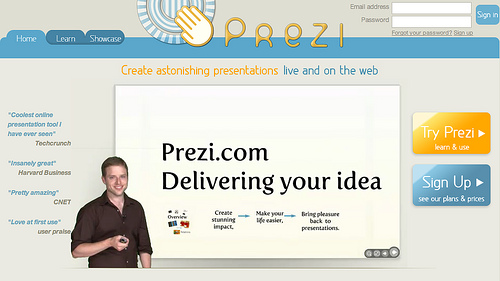
Interested in a new way of PREZInting?

NOTE: Plan to attend the Intro to Prezi session scheduled for Monday, Feb. 13, 2012, from 2-3pm in GEB A302. You’ll hear from Constance Tucker, Educational Coordinator in Student Academic Support Services, Richard Magid, Vice President of the University of Tennessee Research Foundation, and Paul Stumpf, Professor, Program Director & Chair of Obstetrics & Gynecology at Chattanooga, about their use of Prezi. They’ll do a show and tell of what they’ve done, what worked well, what didn’t work as well as hoped for, and their recommendations for use.

When used correctly, PowerPoint can be a fine addition to a presentation. Most of us, though, have experienced Death by PowerPoint. This is a painful and annoying experience!

Enter a relatively new Web 2.0 tool that’s a cross between slides and a whiteboard: Prezi.

Prezi aims to make sharing ideas more interesting. Curiosity is a goal. That could be a very positive thing!

Features of Prezi include:

  • it’s free – some features require licensing, but educators can get a lot for free
  • pan and zoom that allows zooming in/out
  • non-linear navigation within the presentation – not tied to a specific slide sequence
  • can handle text, images, videos
  • create on the web and export for off-line viewing (Pro version allows for off-line creation as well)
  • facilitates showing relation and context

But, is Prezi really useful for doing anything but fancy zooms and offering people the opportunity to skip around in a presentation? Here’s a recent blog post that illustrates the use of Prezi in conveying mathematical ideas and describes some principles for the use of Prezi.

Prezi examples you might find of interest:

Some detailed “how to” sites to get you up and running on Prezi a bit faster with less frustration – from various sources.

When you are welcomed to Prezi after subscribing, their introductory email has lots of great resources, including learning how to make a great Prezi by the company’s co-founder; exploring what other Prezi users are making; support manual; and support channels.

Prezi offers a free webinar every Thursday at 11am CST. Register here to receive details.

Prezi U is Prezi’s educational community. Join that community to learn and share best practices using Prezi in education, meet other educators, see top University Prezis and more.

Other links of interest:

Make plans to join colleagues on Monday, Feb. 13, 2012 from 2-3pm in GEB A302 for an Introduction to Prezi session that will increase your knowledge about Prezi and help you make an informed decision as to using Prezi in your future PREZIntations!

Image Attribution: Image from flickr, uploaded by Edd Dumbill with a Creative Commons Attribution-NonCommercial-ShareAlike 2.0 Generic license. Downloaded by Cynthia Russell on 20120208.

Health Science Center Students share their experiences using mobile devices for education

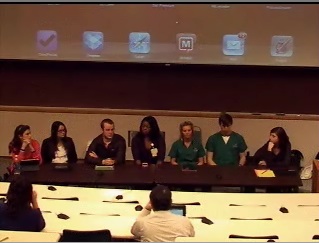
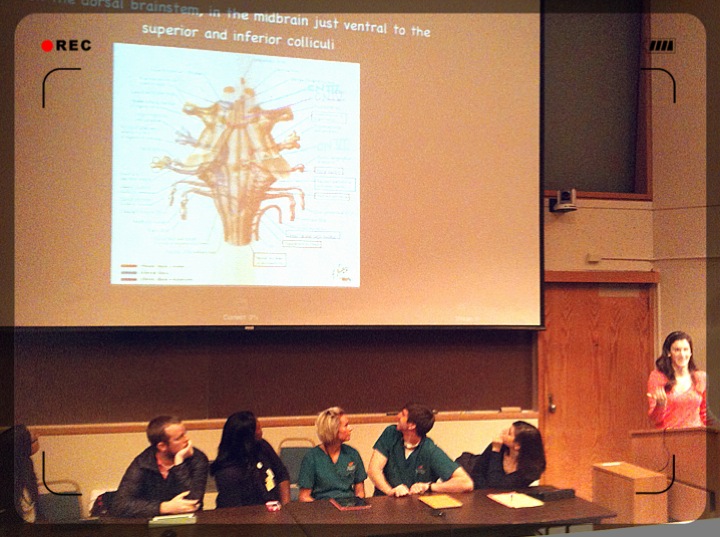
Student Panel for Tech Tuesday Mobile User Group (MUG) Meeting on January 24, 2012

Students from dentistry (Dory Sellers, Andy Thomasson), Medicine (Hannah Dudney, Lauren Lazar, Marissa Mencio), Nursing (Y’esha Weeks), and Pharmacy (Ryan Fowler) were panel presenters at The University of Tennessee Health Science Center’s Tech Tuesday Mobile User Group (MUG) meeting on January 24, 2012. They described their use of mobile devices for education, talked about what did and didn’t work for them, and reviewed apps they’ve found useful. Here’s a quick review of some of what they had to say with some links to apps that were described.

Apps used on a daily basis:

  • Dropbox – syncs documents from PC or Mac and can pull those up on an iPad or iPhone. Can transfer files back and forth.
  • Noterize (not currently available for download; another company took it over and it’s now called “PaperPort” and the feature set is different) and iAnnotate – editing PDFs. Download lectures and take notes on those. Can organize documents into folders (by class, by exam). Can use stylus to write/annotate or fingers.
  • 2X client – to establish a remote desktop connection to access dental software (Axium). Can enter in treatments, access patient records, etc… Can use this to access from home also as long as you initiate a VPN connection. Can be used to establish a remote connection for any purpose, not just to access the dental software! There are other apps available that could do this, but this one works and it’s free!
  • Micromedex (favorite app for pharmacology content – per a medicine student – has IV compatibility app, drug information app, and drug interactions app), Medscape, ePocrates, Lexicomp, Skyscape – drug reference, disease information. Some of these apps are very good because you can download the information and have it accessible even if you’re not on a WiFi network.
  • Blackboard app – to access Blackboard sites.
  • Flashcard apps – Flashcard Deluxe (demonstrated). You can include images, write/color, import from an Excel spreadsheet or a Word document. The students have “thousands and thousands” of flashcards they’ve developed through the years and are happy to share with other students. It’s not time-consuming to develop these flashcards almost instantaneously. Can link articles that are helpful for understanding specific content. For Flashcard Deluxe, they’re kept on a central server for 30 days; can be retained on your own computer. Can be private or generally available. Can create multiple choice questions. Can set a timer to keep you moving. One student likes to use this on a “play” feature – flashes through cards at whatever pre-set time frame you’d like and it automatically plays. The developer of Flashcard Deluxe is very available for questions and upgrades to his product. For ease of use in translating course material into flashcard format, one student takes notes in Excel in a 2-column format. Left column is the front side of the flashcard and the right column is the back side. Constantly questioning and it’s a better way of studying for me (as commented by one student).
  • Electronic textbooks: Several students purchase textbooks and use those electronic versions. They liked the electronic versions better than paper copies of texts because they could get the books instantly and the books were then on their devices that were convenient and with them all the time. They also liked the electronic versions because you can search and find things very quickly, you can highlight passages, you can bookmark pages, and you can share notes with others. Some publishers also have question banks that are accessible to purchasers of the text books and those were seen as valuable. You can adjust text size, screen brightness, color of highlighting, etc… They use the Kindle and iBooks apps for reading their texts and for reading their PDF documents.

Question: How’s the price of the texts for mobile devices? You can’t resell them, right? Answer: They’re less expensive for mobile devices. It’s rare I can’t find an electronic version of a book that I want. Pharmacology question book was $17 and well worth it.

Assorted other apps that one or more of the students used include:

  • Board prep apps
  • DDS GP – excellent app for patient education and other practice-related information. Expensive! $399.99.
  • Comitify – which is both a “to do” and reminder app, as well as an app that allows you to keep track of commitments that you make to others. The app can import contact lists so it’s easy to commit to others.
  • NatureSpace – was mentioned by one student as a great app where if you’re in need of “white noise” while you study (for instance, if you’re in a coffee shop or at the airport), you can set it to make its’ sounds and blur out all but the studying!
  • Leafsnap – was described as a fun app – take a picture of a leaf and have the plant/tree it came from identified.
  • Calendaring apps, including Schelandars and Google calendar. Both allow for lots of individualization and customization. One dental student described putting the course and exam schedules into Google calendar and syncing updates from Google calendar to classmates’ calendars automatically.
  • Students spoke of liking reminder apps, as they keep them focused on all the things they need to do. Re.minder – can be set to “bug you” and have it repeat until you’ve done it.

Apps not discussed but that some students indicated in an email they used:

Things the students wished worked better or differently included:

  • Dentistry classes sometimes have Blackboard tests within a lecture class. If using Respondus LockDown Browser for a test, cannot use a mobile device. They ask that, as teachers, please be mindful of what does/doesn’t work on mobile devices.

Question: With using mobile devices for learning, is there research that shows how quickly graduates adapt and/or how well they retain what they’ve learned? Answer: Some early studies that focused on the ease of use/access of information via these devices and how learning to use them translated to clinical practice. Not much that anyone has seen regarding higher-level outcomes.

Comments and “other” stuff:

  • My studying has greatly improved – because I always have access to what I need when I need it.
  • Nursing students created a video to help others learn how to use apps to manage chronic diseases. Access this YouTube video by clicking here!

Question: Do you use an external (Bluetooth) keyboard or the keyboard on the device? Answer: Most indicated they didn’t use the external keyboard. Many use the stylus to write on the PDF document.
Question: Considering the costs, is it worth it to use the mobile device for your textbooks? Answer: I’d pay more if I had to so that I could get the text for a mobile device – not DOUBLE the cost, but I’d pay more for the convenience of having the text with me.
Question: Does everyone use the iPad? Answer: Some classmates use non-Apple devices. Most of the general apps are available for the most popular mobile devices.

This was a GREAT panel! Faculty and staff in attendance really enjoyed hearing the realities of how these devices are used. Thanks to everyone for attending and for the students for being there!

2nd year Medical student Marissa Mencio shows an example of using Flashcards Deluxe on the iPad.

Image attribution – image @ top of page snagged from Mediasite recording of the student panel. Image @ bottom of page taken by Lin Wu during the student panel presentation.